v2.0.7 Time entries

Version 2.0.7 Student time-entry
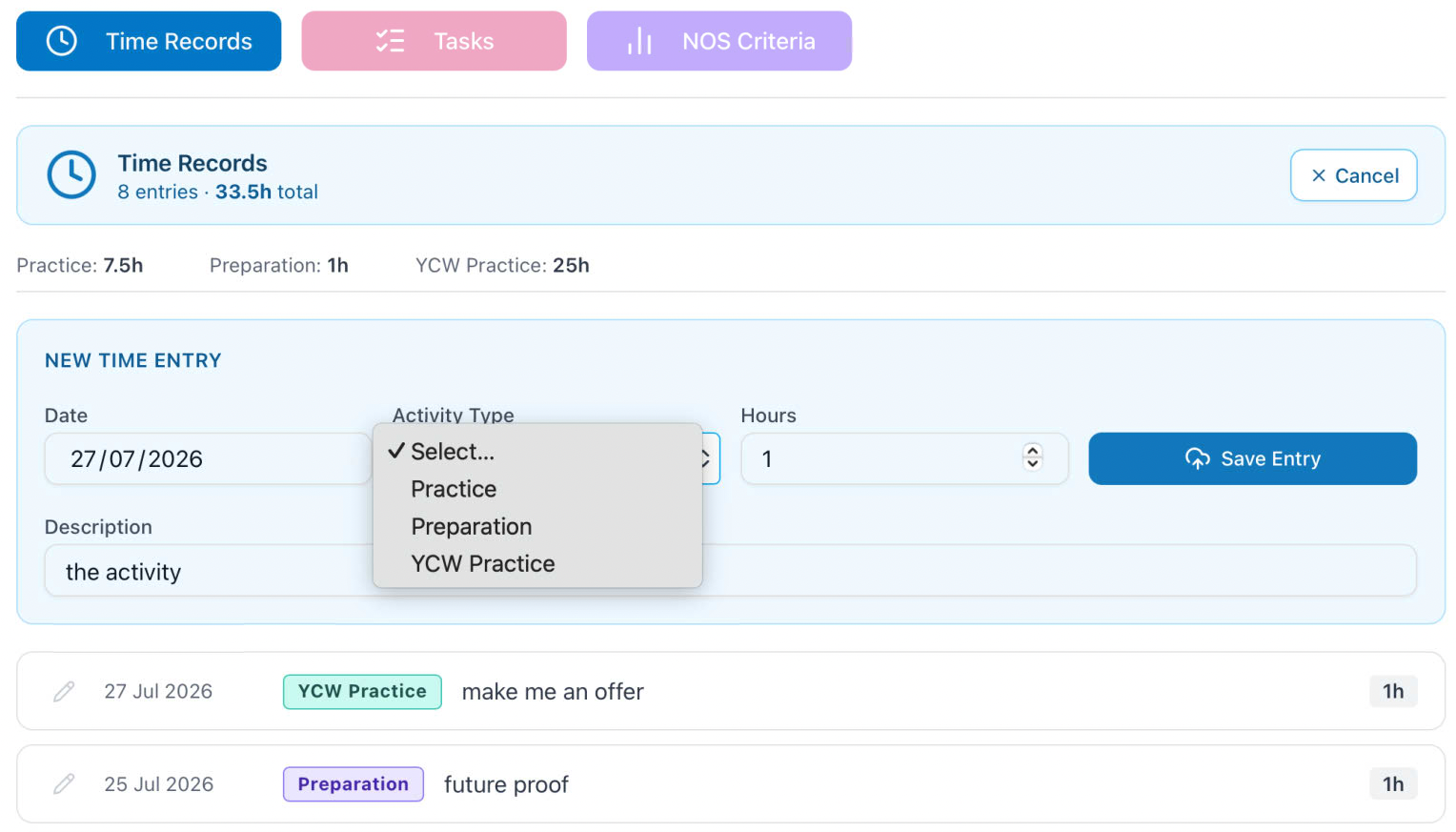
Students can add a time entry from the Add Entry button. This opens a card with 4 fields to complete, all of which are Required.
The Date defaults to today, but is a clickable calendar to select any other day. Activity Type is a drop-down configured by the course type (BAAT, BAATYCW), Hours is a number for decimal hours (to nearest 0.25), Description is for some description of the activity.
Save Entry will perform a save action, and if the student is YCW also refresh the donut display if the Activity is YCW practise. After save the entry box closes. In the event of a desire to cancel the Add Entry button is replaced with Cancel
To edit an existing entry that is not locked - by the row being amber and the presence of a lock icon - the Pencil icon button will push that row into the Entry component.
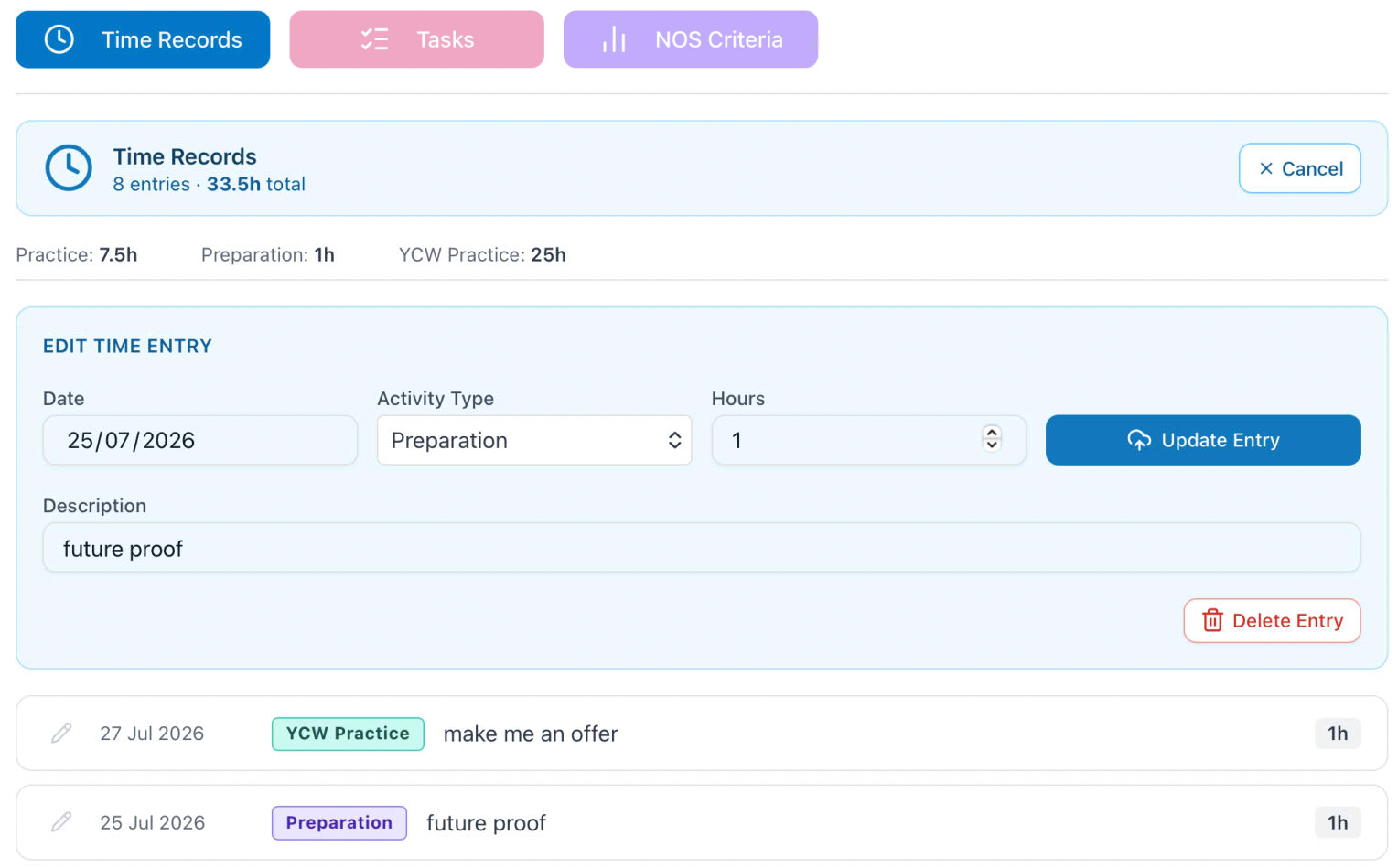
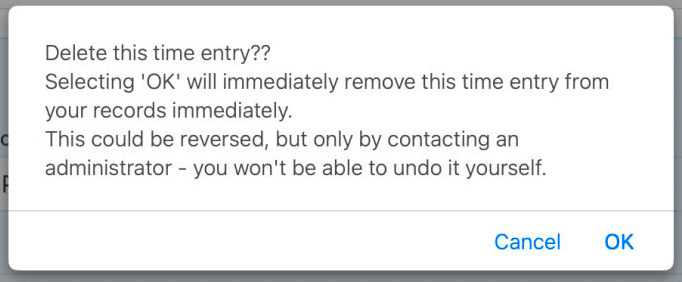
Here it can be amended and the updated data saved with the Update Entry button. In the event that deletion is the required action, the Delete Entry button is used. After a warning alert regarding the destructive nature of the action, this action may be cancelled or proceed.
If either of the above modify the stored data, they will also refresh the donut display for YCW students.